



How to Find Your Wi-Fi Password on Any Device: iPhone, Android, Windows & Mac

How to Find Wi-Fi Password – Forgetting a Wi-Fi password is one of those small problems that always seems to happen at the worst possible time.
Maybe you bought a new phone.
Maybe a friend is visiting and wants to connect.
Maybe you are setting up a smart TV, laptop, tablet or gaming console.
Or maybe your device connects to the network automatically, but you have absolutely no idea what the actual password is anymore.
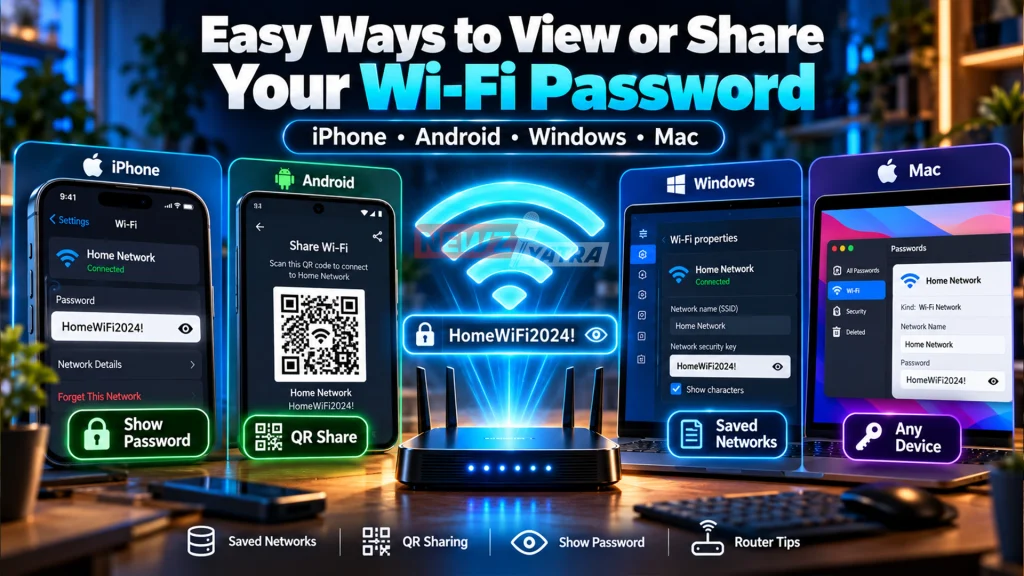
The good news is that if one of your devices has already connected to that Wi-Fi network before, there is a good chance the password is still saved somewhere.
And on modern iPhones, Android phones, Windows PCs and Macs, finding or sharing a saved Wi-Fi password is much easier than it used to be.
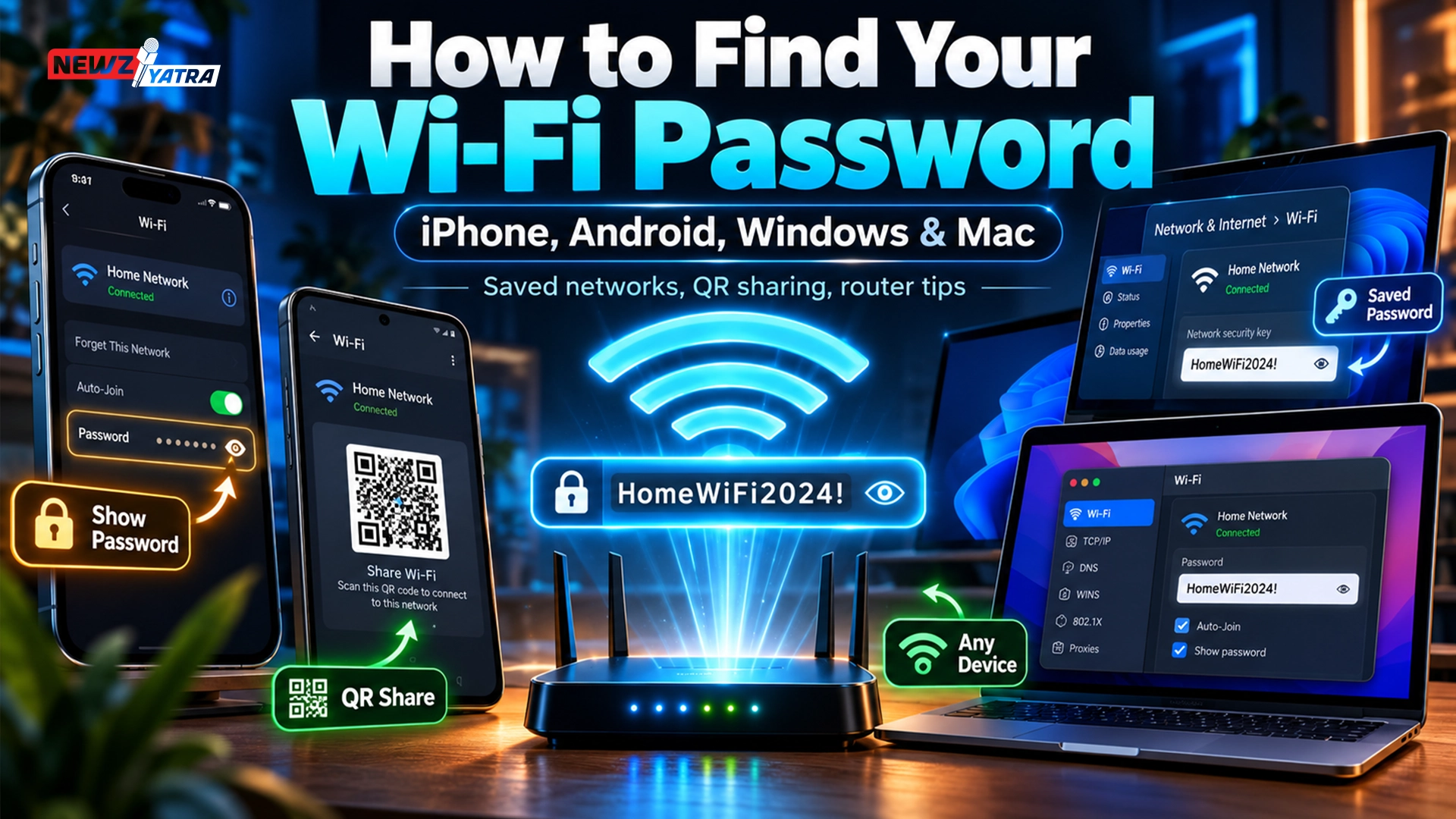
This guide explains how to find your Wi-Fi password on iPhone, Android, Windows 11, Windows 10 and Mac, along with QR-code sharing, saved networks, router options and common troubleshooting steps.
Use these methods only for Wi-Fi networks and devices you own or are authorized to access.
Quick Answer: How to Find Wi-Fi Password
Here is the fastest overview:
| Device | Fastest method |
|---|---|
| iPhone | Passwords app → Wi-Fi |
| Android | Settings → Network & internet → Internet → network → Share |
| Windows 11 | Settings → Network & internet → Properties → Show |
| Windows 10 | Network and Sharing Center → Wi-Fi → Wireless Properties |
| Mac | Passwords app → Wi-Fi |
| Router | Check router label or router admin settings |
| Sharing without typing password | Use QR code or built-in device sharing |
Apple now lets iPhone users view current and previously saved Wi-Fi passwords with device authentication. Google supports QR-code Wi-Fi sharing on Android, and Microsoft allows Windows users to reveal the saved Wi-Fi password directly from network settings. (How to Find Wi-Fi Password)
How to Find Wi-Fi Password on iPhone
If your iPhone has connected to the Wi-Fi network before, you may be able to reveal the password directly.
There are two useful methods.
Method 1: Find the Password of the Wi-Fi You Are Using
Open:
Settings → Wi-Fi
Find the network you are currently connected to.
Tap the information icon next to the network.
Tap the Password field.
Your iPhone will ask you to authenticate using Face ID, Touch ID or your device passcode.
After authentication, the Wi-Fi password is revealed and can be copied.
Apple officially supports this on iOS 16 and later.
Method 2: Find Old Saved Wi-Fi Passwords
You do not necessarily need to be connected to the network right now.
On supported iOS versions:
Go to:
Settings → Wi-Fi → Edit
Authenticate yourself.
You can then view networks your iPhone has joined previously.
Tap the information icon beside a saved network, then tap the password field.
On iOS 18 and later, Apple also lets you manage saved Wi-Fi credentials through the Passwords app.
Using the Passwords App on iPhone
Open:
Passwords → Wi-Fi
Choose the network.
Tap the password field.
You can then reveal or copy the password.
This is often the easiest method if you want to check several previously saved Wi-Fi networks.
How to Share Wi-Fi Password on iPhone Without Typing It
Sometimes you do not even need to know the actual password.
If another Apple user wants to join the same Wi-Fi network, iPhone can share the connection directly.
Both devices should generally:
- have Wi-Fi enabled
- have Bluetooth enabled
- be close to each other
- not be using Personal Hotspot
- have the relevant contact information available
When the other person chooses the Wi-Fi network, your iPhone may display a Share Password prompt.
Tap it to share access. (How to Find Wi-Fi Password)
Apple also now supports showing a network QR code from the saved Wi-Fi credentials in the Passwords experience.
How to Find Wi-Fi Password on Android
Android is slightly different because menus vary between manufacturers such as:
- Google Pixel
- Samsung
- OnePlus
- Xiaomi
- Motorola
- Oppo
- Vivo
However, modern Android versions usually provide an easy way to share saved Wi-Fi information.
On standard Android, go to: (How to Find Wi-Fi Password)
Settings → Network & internet → Internet
Tap your connected Wi-Fi network.
Choose Share.
Your phone may ask for your PIN, fingerprint or another form of authentication.
Android will then display a QR code that another device can scan to join the network. Google officially documents this sharing method.
Depending on your Android version and phone manufacturer, the password may also appear beneath or alongside the QR code.
Can Android Show a Saved Wi-Fi Password?
On many modern Android phones, yes.
However, the exact interface differs by brand.
A Pixel phone may show the network information differently from a Samsung Galaxy device.
If you do not see the actual password, you can still use the QR-code sharing feature to connect another device without manually typing it. (How to Find Wi-Fi Password)
How to Find Wi-Fi Password on Samsung
Samsung phones use their own One UI interface, so the wording may look slightly different from standard Android.
A common path is:
Settings → Connections → Wi-Fi
Tap the settings icon beside the connected network.
Look for a QR code option.
Authenticate if requested.
The QR code can then be scanned by another device.
Some Samsung versions may also display or expose additional network information depending on the software version.
Because Samsung frequently updates One UI, the exact button location may change slightly. (How to Find Wi-Fi Password)
How to Find Wi-Fi Password on Windows 11
Windows 11 has made this much easier than older Windows versions.
On a current Windows 11 PC, open:
Settings → Network & internet
Open the connected Wi-Fi network’s properties.
Next to Wi-Fi network password, choose Show.
Microsoft also allows you to open Manage known networks, select a previously saved network and reveal its password there.
That means you can often find passwords for networks your PC connected to in the past, even if you are not connected to them right now. (How to Find Wi-Fi Password)
Why This Is Useful
Suppose your laptop automatically connects to your home Wi-Fi, but your new phone does not.
Instead of resetting the router or asking someone else for the password, you can simply reveal it on the Windows PC.
How to Find Wi-Fi Password on Windows 10
Windows 10 commonly uses the older Network and Sharing Center method.
Go to:
Control Panel → Network and Internet → Network and Sharing Center
Select your Wi-Fi connection.
Choose:
Wireless Properties
Open the:
Security tab.
Check:
Show characters
The saved password appears in the Network security key field.
Microsoft still documents this method for compatible Windows setups. (How to Find Wi-Fi Password)
How to Find Wi-Fi Password Using Command Prompt
Windows also stores Wi-Fi profiles for networks it has connected to.
Advanced users sometimes use Command Prompt to inspect saved network profiles.
However, for most users, the modern Windows Settings method is safer and easier.
If your version of Windows gives you a direct Show Wi-Fi network password option, use that first.
It is simpler and avoids unnecessary command-line work. (How to Find Wi-Fi Password)
How to Find Wi-Fi Password on Mac
Modern macOS versions make saved Wi-Fi passwords easy to access through Apple’s Passwords app.
Open:
Passwords
Choose:
Wi-Fi
Select the Wi-Fi network you want.
Move the pointer over the hidden password dots or click them.
The password can then be revealed or copied.
Apple says the Passwords app can show both your current Wi-Fi network and previously saved networks.
How to Share Wi-Fi Password From a Mac
A Mac can also share Wi-Fi access with nearby Apple devices.
The Mac should be:
- unlocked
- connected to the Wi-Fi network
- signed in to the Apple Account
The other iPhone, iPad or Mac should be nearby.
When the other device selects the Wi-Fi network, the Mac can display a password-sharing prompt.
Click Share Password.
Apple also supports showing a Wi-Fi network QR code from the Passwords app on Mac.
How to Find a Wi-Fi Password From Your Router
If none of your devices reveal the password, the router itself may help.
First, look at the label on the router.
Many routers ship with information such as:
- Wi-Fi network name
- SSID
- Wi-Fi key
- Wireless password
- WPA key
If the original password has never been changed, the printed password may still work.
However, if somebody changed the Wi-Fi password later, the label will show only the factory default.
Check the Router Admin Page
If you own or manage the router, you may be able to sign in to its administration interface.
Common router settings include sections such as:
Wireless
Wi-Fi
Security
or
WLAN
The current Wi-Fi password may appear there or can usually be changed.
Do not randomly reset the router unless necessary.
A factory reset can erase: (How to Find Wi-Fi Password)
- Wi-Fi settings
- ISP configuration
- custom network names
- parental controls
- port forwarding
- other network settings
What If You Forgot the Router Admin Password Too?
The router admin password and Wi-Fi password are two different things.
The Wi-Fi password connects devices to the wireless network.
The router admin password controls access to the router’s settings.
If you forgot both, check:
- router documentation
- ISP app or account
- router label
- network administrator
- internet provider support
A factory reset should usually be a last resort.
How to Find an Old Saved Wi-Fi Password
This is possible on several platforms.
iPhone
Use:
Passwords → Wi-Fi
or the saved-network options in Wi-Fi settings.
Apple supports viewing previously joined networks.
Mac
Open:
Passwords → Wi-Fi
Previously saved networks can appear there.
Windows 11
Go to:
Settings → Network & internet → Wi-Fi → Manage known networks
Choose the saved network and look for the password reveal option.
Android
Saved-network controls vary by manufacturer and Android version.
Some phones allow you to choose a saved network and generate a QR code.
How to Share Wi-Fi Password With a QR Code
QR-code sharing is one of the easiest ways to connect another device.
Instead of spelling a complicated password such as: (How to Find Wi-Fi Password)
P9x!7Qv@4Lz
you simply show a QR code.
The other device scans it and joins the network.
Android officially supports generating a QR code from Wi-Fi settings.
Windows devices with compatible camera support can also scan Wi-Fi QR codes through the Camera app and use the information to connect.
Apple’s newer Passwords experience also includes QR-code sharing for saved Wi-Fi credentials.
Can You Share Wi-Fi Without Revealing the Password?
Yes.
This is often better than reading the password aloud.
Useful options include:
- Apple Share Password
- Android Wi-Fi QR code
- Mac Wi-Fi sharing
- Windows QR-code connection
These methods let another device connect without requiring the user to manually type the password.
Why Can’t I See My Wi-Fi Password?
There are several possible reasons.
Your Device Never Saved the Network
If the phone or computer has never successfully joined that Wi-Fi network, it may not have a saved password to display.
Your Operating System Is Too Old
Older versions of iOS, Android, Windows or macOS may not include the newer password-reveal interface.
The Manufacturer Uses Different Menus
Android menus vary significantly between brands.
You Do Not Have Permission
Managed business, school or organization devices may restrict access to saved credentials.
The Network Uses Enterprise Authentication
Some workplace or university networks do not use a simple shared Wi-Fi password.
Instead, they may use usernames, certificates or enterprise authentication.
How to Find Wi-Fi Password on iPhone Without Face ID
Apple requires authentication before revealing saved Wi-Fi passwords.
If Face ID is unavailable, the device can typically use your passcode instead.
This is a security feature.
Without device authorization, saved passwords should not be visible to anyone who simply picks up your phone.
Can You Find Wi-Fi Password Without Being Connected?
Sometimes.
You do not always need an active connection.
If the network was saved previously, the password may still be available.
For example:
- iPhone can show previously joined networks
- Mac can show saved Wi-Fi networks
- Windows 11 can show known networks
The important requirement is that the device saved the network information in the past.
Can You Find Someone Else’s Wi-Fi Password?
You should only access or reveal credentials for networks you own, manage or have permission to use.
Knowing how your own device stores a password does not give you permission to access someone else’s network.
If you are at a hotel, office, cafe or friend’s home, ask the network owner or administrator for access.
How to Change Your Wi-Fi Password
If you found the password but think it is weak or has been shared with too many people, consider changing it.
You will usually need to access the router or your internet provider’s app.
Choose a password that is:
- long
- unique
- difficult to guess
- not reused on other accounts
Avoid passwords such as:
12345678
password123
your phone number
your address
or
your name + birth year
After changing the Wi-Fi password, existing devices may disconnect and need to reconnect using the new password.
What Makes a Good Wi-Fi Password?
A good Wi-Fi password should be hard to guess but practical enough to manage.
A strong password can use:
- multiple unrelated words
- uppercase and lowercase letters
- numbers
- symbols
For example, a long passphrase can be easier to remember and harder to guess than a short complicated word.
Do not reuse sensitive account passwords.
Your Wi-Fi password should be different from your:
- email password
- banking password
- Apple Account password
- Google password
- social-media password
Should You Use a QR Code for Guest Wi-Fi?
Yes, especially if people regularly visit your home or business.
A QR code makes connecting easier and reduces typing mistakes.
For businesses, a separate guest Wi-Fi network is often preferable to sharing the password for your main internal network.
That helps keep:
- personal devices
- office systems
- smart-home devices
- internal files
more separated from guest traffic. (How to Find Wi-Fi Password)
Wi-Fi Password vs Hotspot Password
These are different.
A Wi-Fi password usually belongs to your router or wireless access point.
A mobile hotspot password belongs to the hotspot created by your phone.
On Android, mobile hotspot settings are separate from normal Wi-Fi settings. Google also notes that Android phones can share mobile data through Wi-Fi hotspot, Bluetooth or USB tethering.
If someone is asking for your “Wi-Fi password” while your phone is acting as a hotspot, they probably mean your hotspot password. (how to find wifi password)
Can Your Devices Remember Wi-Fi Passwords Automatically?
Yes.
Once a device successfully joins a network, it usually stores the network details so it can reconnect automatically later.
Android calls these networks saved networks.
Apple can also sync Wi-Fi passwords through iCloud Keychain when the feature is enabled across supported devices.
This is why you can forget the actual password for years while your phone and laptop continue connecting automatically.
Best Method for Each Device
Here is the simplest recommendation. (How to Find Wi-Fi Password)
iPhone
Use the Passwords app or:
Settings → Wi-Fi → network → Password
Android
Use:
Settings → Network & internet → Internet → network → Share
Samsung
Open the Wi-Fi network details and use the QR-code option.
Windows 11
Use:
Settings → Network & internet → Wi-Fi → Properties → Show
Windows 10
Use:
Network and Sharing Center → Wireless Properties → Security → Show characters
Mac
Use:
Passwords → Wi-Fi
Router
Check the label or router administration interface. (How to Find Wi-Fi Password)
Frequently Asked Questions
How do I find my Wi-Fi password?
Use a device that has already connected to the network. Modern iPhone, Android, Windows and Mac devices can usually reveal or share saved Wi-Fi information. (how to find wifi password)
How do I find my Wi-Fi password on iPhone?
Go to Settings → Wi-Fi, tap the information icon beside your network, tap Password, then authenticate. On newer versions of iOS, you can also use Passwords → Wi-Fi.
How do I find an old Wi-Fi password on iPhone?
Open the Passwords app and choose Wi-Fi, or view previously joined networks from Wi-Fi settings.
How do I find my Wi-Fi password on Android?
Open Settings → Network & internet → Internet, choose the network and tap Share. Android can generate a QR code for the Wi-Fi connection.
How do I find my Wi-Fi password on Windows 11?
Open Settings → Network & internet, open the Wi-Fi properties, then choose Show beside the Wi-Fi network password.
How do I find a saved Wi-Fi password on Windows 10?
Open Network and Sharing Center, select your Wi-Fi connection, open Wireless Properties, choose Security and check Show characters.
How do I find my Wi-Fi password on Mac?
Open the Passwords app → Wi-Fi, choose the network and reveal the password.
Can I find a Wi-Fi password without being connected?
Yes, if the network was previously saved on a supported device.
Can I share Wi-Fi without telling someone the password?
Yes. Apple devices can use built-in password sharing, while Android and other platforms can use QR codes.
Can I scan a QR code to connect to Wi-Fi?
Yes. Android supports Wi-Fi sharing by QR code, and Windows can scan compatible Wi-Fi QR codes using the Camera app.
Why is my Wi-Fi password not showing?
Possible reasons include an outdated operating system, manufacturer-specific menus, enterprise restrictions or the network never having been saved on that device.
Is the router password the same as the Wi-Fi password?
Not necessarily. The router administrator password controls router settings, while the Wi-Fi password connects devices to the wireless network.
Should I change my Wi-Fi password regularly?
You do not need to change a strong password constantly, but you should change it if it has been shared too widely, exposed or compromised.
Final Takeaway
If you have forgotten your Wi-Fi password, do not reset your router immediately.
First, check a device that has already connected to the network.
On iPhone, the password can usually be found through Wi-Fi settings or the Passwords app.
On Android, use the network’s Share option and QR code.
On Windows 11, the saved Wi-Fi password can be revealed directly from network settings.
On Mac, open the Passwords app and select Wi-Fi.
And if none of your devices still remember the network, check the router or contact the network administrator.
In most cases, your Wi-Fi password is not actually lost.
One of your devices already remembers it for you.