



How to Transfer Photos from iPhone to Computer: 7 Easy Methods for Windows & Mac

How to transfer photos from iphone to computer– If your iPhone storage is almost full, your photo library has become too large, or you simply want a safe backup of your pictures, transferring them to a computer is one of the easiest things you can do.
The problem is that there is no single method that works best for everyone.
Some people want to transfer thousands of photos with a USB cable. Others want to move just a few pictures wirelessly. Some use Windows 11, while others use a Mac. And if your photos are stored in iCloud instead of directly on the iPhone, the process can be slightly different.
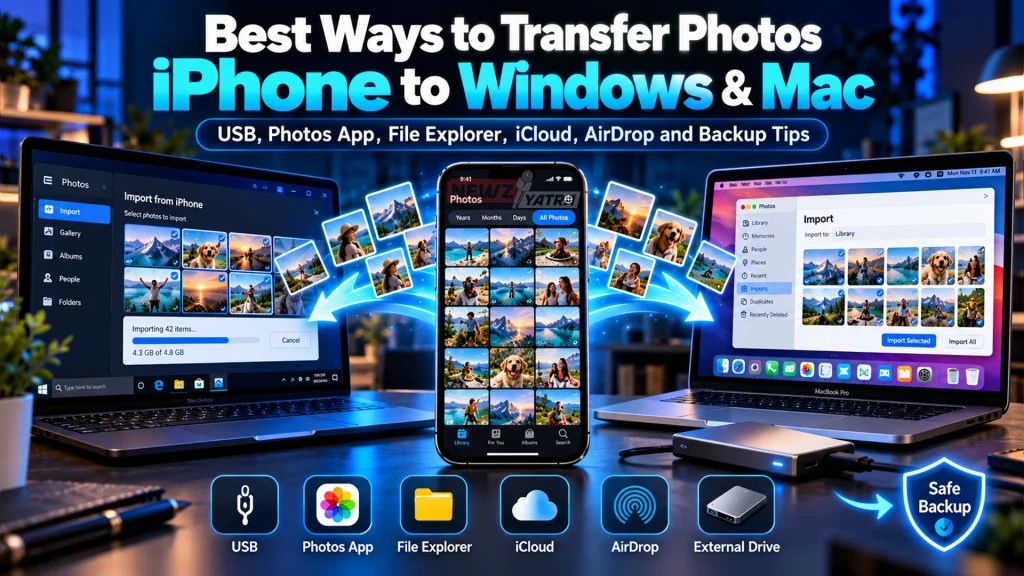
The good news is that there are several reliable ways to do it.
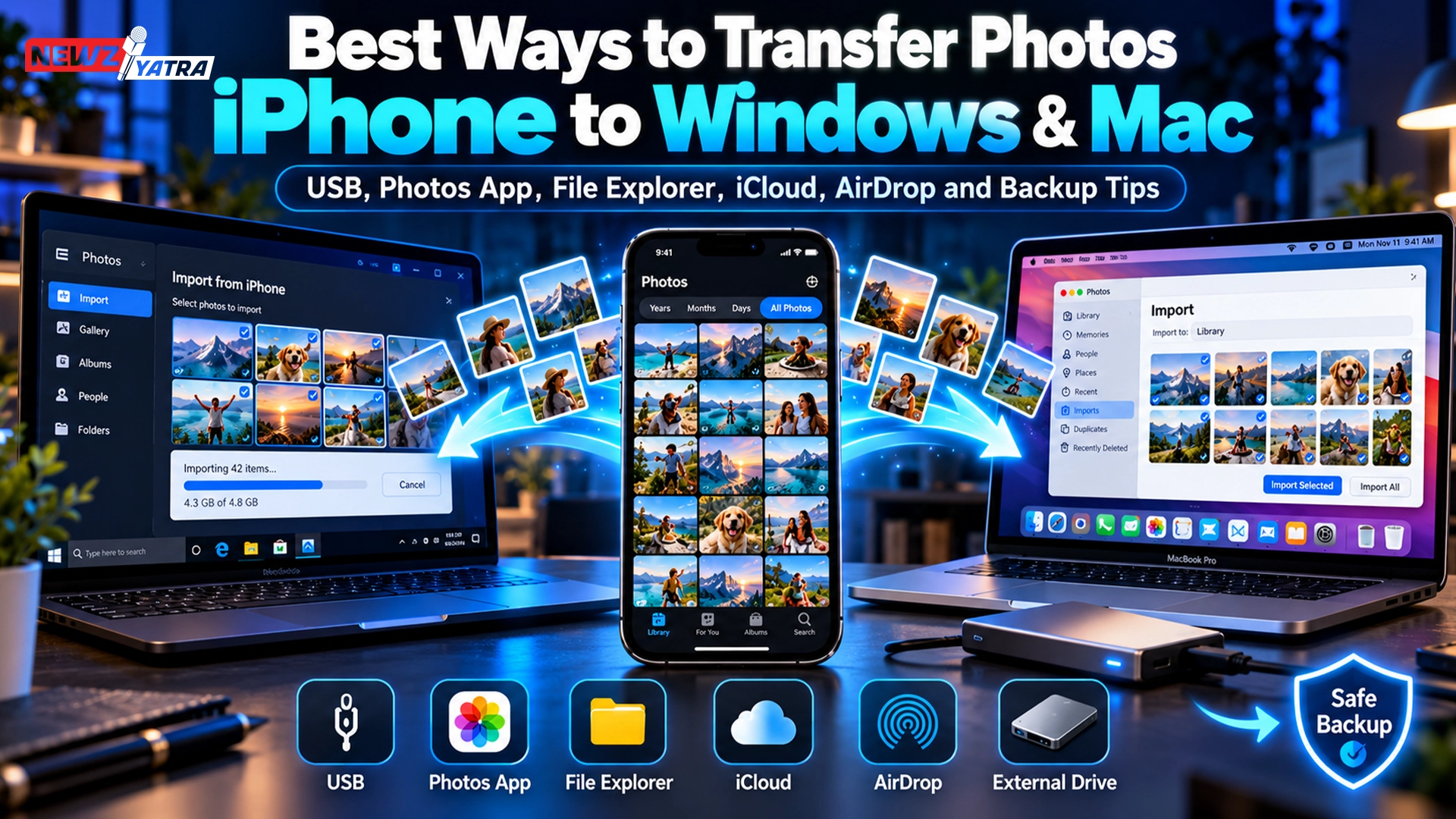
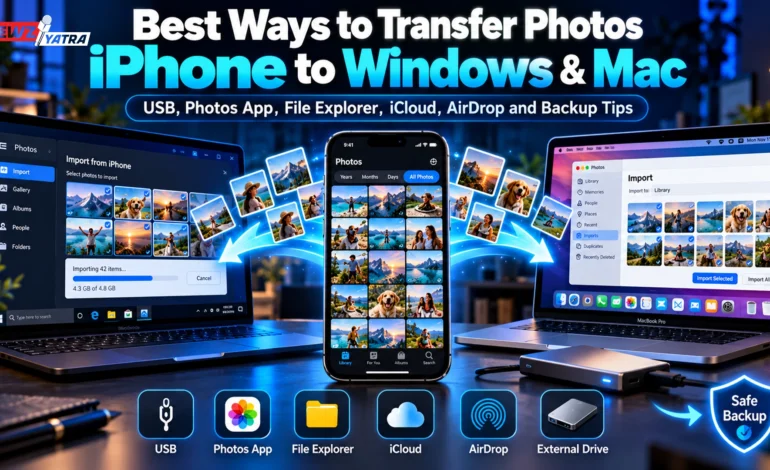
In this guide, you will learn how to transfer photos from iPhone to computer using Windows Photos, File Explorer, iCloud, AirDrop, cloud storage and external drives.
We will also cover what to do if your iPhone is not showing on your PC, photos are missing, HEIC images will not open, or the import stops halfway through.
Quick Answer: Best Way to Transfer Photos from iPhone to Computer (how to transfer photos from iphone to computer)
For most users, these are the easiest options:
| Method | Best For | Internet Needed? |
|---|---|---|
| USB + Windows Photos | Windows users | No |
| File Explorer | Manual copying on Windows | No |
| AirDrop | iPhone to Mac | No internet required |
| iCloud Photos | Wireless syncing | Yes |
| OneDrive/Google Photos | Cloud backup | Yes |
| External drive | Large offline transfers | No |
If you are using Windows, Microsoft recommends connecting your unlocked iPhone with a USB cable, opening the Photos app, choosing Import, and selecting the connected device.
If you use a Mac, AirDrop or the built-in Photos app is usually the easiest method.
1. How to Transfer Photos from iPhone to Windows 11 Using USB
This is one of the simplest methods if you want to move a large number of photos from your iPhone to a Windows computer.
You will need:
- your iPhone
- a USB or USB-C cable that supports data transfer
- a Windows 11 PC
- the Microsoft Photos app
Step 1: Connect Your iPhone
Connect your iPhone to the PC using a compatible cable.
Unlock the iPhone.
If you see:
Trust This Computer?
tap:
Trust
and enter your iPhone passcode.
If the iPhone remains locked, Windows may not be able to access your photos.
Step 2: Open the Photos App
On your PC:
Open Start and search for:
Photos
Launch the Microsoft Photos app.
Step 3: Import Your Photos
Inside Photos, choose:
Import
Then select your connected iPhone.
Windows will scan the device and show the photos and videos available for transfer.
Select the photos you want.
Choose where you want to save them.
Then start the import.
Microsoft officially documents this workflow for both Windows 11 and Windows 10.
Why This Method Is Good
This is one of the best methods if you have:
- hundreds of photos
- large videos
- no fast internet connection
- limited iCloud storage
A cable transfer is also usually faster than uploading everything to the cloud first.
2. How to Transfer Photos from iPhone to Computer Using File Explorer
If you prefer to manually copy your photos instead of using the Photos app, Windows File Explorer can also work.
Connect your iPhone to the computer.
Unlock the phone.
Tap Trust if prompted.
Then open:
File Explorer → This PC → Apple iPhone
You may see a folder such as:
Internal Storage
Open it and look for the folder containing your photos.
You can then copy the files to a folder on your PC.
For example:
Pictures → iPhone Backup
Why Some People Prefer File Explorer
File Explorer gives you more control over: (how to transfer photos from iphone to computer)
- where files are stored
- how folders are organized
- which files you copy
- how you name your backup folders
For example, you could create:
iPhone Photos 2026
and then create subfolders such as:
January
Vacation
Family
Work
This can be easier than keeping everything inside a single photo library.
3. How to Transfer Photos from iPhone to Computer Using iCloud
If you do not want to connect your iPhone every time, iCloud Photos is one of the easiest wireless options.
Apple says iCloud Photos keeps your photos and videos available across Apple devices, iCloud.com and Windows PCs when properly configured.
Turn On iCloud Photos on iPhone
On your iPhone, go to:
Settings → Your Name → iCloud → Photos
Turn on photo syncing.
Your photos can then upload to iCloud when the iPhone has internet access.
Access iPhone Photos on Windows
On Windows, you can use iCloud for Windows or access your library through iCloud.
Once everything is synchronized, you can view and download photos without connecting your iPhone with a cable.
Important: Check Your iCloud Storage
iCloud Photos uses your available iCloud storage.
If your library is larger than your current storage plan, you may need additional storage.
Apple confirms that full-resolution originals can remain stored in iCloud while optimized versions stay on the iPhone to save space.
4. How to Transfer Photos from iPhone to Mac
If you own a Mac, the process is usually very easy.
You have two main options:
- USB import
- AirDrop
Transfer with the Photos App
Connect your iPhone to the Mac.
Unlock it.
Open the Photos app on the Mac.
Choose your iPhone from the sidebar.
Select the images you want to import.
Then choose:
Import Selected
or:
Import All New Photos
Apple supports transferring photos and videos from iPhone directly to a Mac using the Photos app and a cable. (how to transfer photos from iphone to computer)
5. How to Transfer Photos from iPhone to Mac Using AirDrop
If you only need to transfer a few photos, AirDrop is usually faster than using a cable.
Make sure:
- Wi-Fi is enabled
- Bluetooth is enabled
- both devices are nearby
Apple says AirDrop can transfer photos, videos, documents and other items between nearby Apple devices.
On Your iPhone
Open:
Photos
Select the pictures.
Tap:
Share
Choose:
AirDrop
Then choose your Mac.
On Your Mac
Accept the transfer if necessary.
The photos will usually appear in Downloads or the relevant app depending on your settings.
When AirDrop Is Best
Use AirDrop when transferring:
- 1 photo
- 10 photos
- screenshots
- short videos
- edited images
For thousands of photos, USB or iCloud is usually more practical.
6. How to Transfer Photos from iPhone to Computer Without iCloud
A lot of people search for how to transfer photos from iPhone to computer without iCloud because they do not want to pay for extra cloud storage.
You have several options:
Windows
Use:
USB + Photos
or:
USB + File Explorer
Mac
Use:
USB + Photos
or:
AirDrop
External Drive
You can also export original photos directly from an iPhone to connected external storage.
Apple supports exporting unmodified original photos and videos to external storage connected to the iPhone.
This can be useful if you have:
- hundreds of gigabytes of media
- slow internet
- limited cloud storage
- an external SSD
7. How to Transfer Photos from iPhone to Computer Wirelessly
If you want to transfer photos without using a cable, cloud storage is the easiest option.
Popular choices include:
- iCloud Photos
- Google Photos
- OneDrive
- Dropbox
Apple also supports using cloud storage services to move files between iPhone and computer.
Example Workflow
On iPhone:
Upload your photos to a cloud service.
On the computer:
Open the same account.
Download your photos.
This works on Windows, Mac and even Linux.
The main disadvantages are:
- internet usage
- upload time
- cloud storage limits
How to Transfer Thousands of Photos from iPhone to PC
If you have 5,000, 10,000 or even more photos, do not try to send them using email or messaging apps. (how to transfer photos from iphone to computer)
Use:
USB
or:
iCloud Photos
For large USB transfers:
- Keep the iPhone unlocked.
- Use a reliable data cable.
- Connect directly to the PC instead of using a weak USB hub.
- Import photos in smaller groups if the transfer keeps failing.
- Make sure the PC has enough free storage.
For extremely large libraries, dividing the import into months or years can make the process easier to manage. (how to transfer photos from iphone to computer)
Why Are Some iPhone Photos Missing on Windows?
This is one of the most common problems.
One possible reason is Optimize iPhone Storage.
When this feature is enabled, full-resolution originals may be stored in iCloud while smaller optimized versions remain on the iPhone.
Apple confirms that optimized storage can keep full-resolution originals in iCloud instead of locally on the device.
If the original photo is not currently downloaded to your iPhone, Windows may not be able to import it directly through a cable. (how to transfer photos from iphone to computer)
Possible Fix
Go to:
Settings → Your Name → iCloud → Photos
Choose:
Download and Keep Originals
Then allow enough time for the original files to download.
Make sure the iPhone has:
- enough free storage
- Wi-Fi
- power if possible
iPhone Not Showing on Computer? Try These Fixes
If your computer does not recognize your iPhone, try these steps.
1. Unlock the iPhone
The phone should be unlocked during detection.
Microsoft specifically notes that the PC may not detect the phone if it is locked.
2. Tap Trust
If the iPhone asks whether to trust the computer, choose:
Trust
Apple also notes that Windows users may need to approve the Trust prompt when connecting an iPhone.
3. Try Another Cable
Some cables only charge devices and do not properly transfer data.
Use:
- an Apple cable
- or a high-quality certified cable
4. Try Another USB Port
A damaged or unstable USB port can interrupt transfers.
5. Restart Both Devices
Restart:
- iPhone
- computer
Then reconnect them.
6. Update Windows
Make sure Windows and the Photos app are updated.
7. Install or Update Apple Devices
Apple currently supports its Apple Devices app on Windows for managing connected iPhones and iPads. (how to transfer photos from iphone to computer)
Why Are iPhone Photos in HEIC Format?
Newer iPhones often store photos using HEIF/HEIC because it can provide good quality at smaller file sizes.
You may see filenames such as:
IMG_1234.HEIC
instead of:
IMG_1234.JPG
Most modern systems can handle HEIC, but some older Windows apps may have trouble opening it.
How to Avoid HEIC Problems
You have several choices:
- install HEIF support on Windows
- convert HEIC to JPG
- adjust iPhone camera settings
- use automatic transfer conversion where available
Do not convert every image unnecessarily if your workflow already supports HEIC.
Does Transferring Photos Reduce Image Quality?
Normally, a proper file transfer does not reduce photo quality.
If you copy the original file through:
- USB
- File Explorer
- Photos
- iCloud download
the image should maintain its original quality.
Quality can be reduced if you send images through apps that compress them, such as certain messaging or social media platforms.
If quality matters, avoid sending hundreds of photos through chat apps before saving them to your computer.
Should You Delete Photos from iPhone After Transfer?
Only after you verify the backup.
Before deleting anything from your phone:
- Open several transferred images.
- Check that videos play properly.
- Confirm the total file count.
- Make sure the files are stored in the correct location.
- Ideally create a second backup.
A good rule is: (how to transfer photos from iphone to computer)
Never keep important photos in only one place.
You could keep copies on:
- your computer
- an external drive
- iCloud
- another cloud service
Best Method to Transfer Photos from iPhone to Computer
The best method depends on what you need.
For Windows Users
Use:
USB + Microsoft Photos
Best for large imports.
For Mac Users
Use:
Photos app
for large transfers.
Use:
AirDrop
for small transfers.
For Automatic Backup
Use:
iCloud Photos
For No Internet
Use:
USB
For Very Large Libraries
Use:
USB or external storage
USB vs iCloud: Which Is Better?
USB Advantages
- fast
- no internet needed
- no cloud storage cost
- good for large videos
USB Disadvantages
- requires cable
- occasional detection problems
- iCloud-only originals may not be locally available
iCloud Advantages
- wireless
- automatic syncing
- available on multiple devices
- easy long-term backup workflow
iCloud Disadvantages
- requires internet
- limited free storage
- large libraries can take time to upload
AirDrop vs USB
Use AirDrop when transferring a few files.
Use USB when transferring large folders.
AirDrop is convenient but transferring thousands of full-resolution photos at once can be less practical than a wired import. (how to transfer photos from iphone to computer)
Common Mistakes to Avoid
Using a Charge-Only Cable
Not every USB cable transfers data properly.
Disconnecting During Transfer
Wait until the import is complete.
Deleting Before Checking the Backup
Always verify your transferred files first.
Ignoring iCloud Optimization
Some originals may be in iCloud instead of stored locally.
Sending Through WhatsApp or Social Media
These platforms may compress the images.
Storing Everything on One Computer
Computer drives can fail.
Keep at least one additional backup.
Frequently Asked Questions
How do I transfer photos from iPhone to computer?
Connect your iPhone using a USB cable, unlock it, trust the computer, open the Photos app on your PC or Mac, and import the photos you want.
How do I transfer photos from iPhone to Windows 11?
Connect the iPhone to your Windows 11 PC, unlock it, open Microsoft Photos, choose Import, select the connected iPhone and choose the photos to transfer.
How do I transfer photos from iPhone to computer without iCloud?
Use a USB cable and import through Microsoft Photos or File Explorer on Windows. On Mac, use the Photos app or AirDrop.
How do I transfer photos from iPhone to PC without iTunes?
You do not need iTunes for normal photo importing. Windows Photos and File Explorer can transfer photos directly. (how to transfer photos from iphone to computer)
How do I transfer photos from iPhone to computer wirelessly?
Use iCloud Photos, Google Photos, OneDrive, Dropbox or AirDrop if transferring to a Mac.
Why are my iPhone photos not showing on my PC?
Possible causes include a locked iPhone, missing Trust permission, faulty cable, iCloud optimization, outdated software or connection problems.
Why won’t my iPhone connect to Windows?
Unlock the iPhone, tap Trust, try another USB cable or port, restart both devices and update Windows or Apple Devices. (how to transfer photos from iphone to computer)
Can I transfer photos from iPhone to PC without a cable?
Yes. You can use iCloud Photos, OneDrive, Google Photos or other cloud storage services.
Does transferring iPhone photos lose quality?
A direct file transfer usually preserves original image quality. Compression generally happens when images are sent through certain messaging or social-media platforms.
Can I transfer HEIC photos to Windows?
Yes. Windows can work with HEIC when the appropriate HEIF support is available, or you can convert HEIC files to JPG if needed.
What is the fastest way to transfer thousands of photos from iPhone?
A direct USB connection is usually one of the fastest and most reliable options for very large photo libraries. (how to transfer photos from iphone to computer)
Can I transfer photos directly to an external hard drive?
Yes. Depending on your setup, you can transfer them through a computer or export originals from a supported iPhone directly to connected external storage.
Final Takeaway
If you are wondering how to transfer photos from iPhone to computer, you have more options than ever. (how to transfer photos from iphone to computer)
For Windows users, the easiest method is usually:
Connect the iPhone → unlock it → open Microsoft Photos → Import.
For Mac users, the built-in Photos app works well for large transfers, while AirDrop is ideal for quickly moving a few pictures.
If you want automatic wireless access, iCloud Photos is one of the most convenient solutions.
And if you have thousands of photos or large 4K videos, a direct USB transfer is usually the most practical option. (how to transfer photos from iphone to computer)
The most important part is not just moving the files.
It is making sure your photos are safely backed up before deleting anything from your iPhone.
A photo library may contain years of memories.
Taking a few extra minutes to verify the transfer is worth it.